Embed Interviews on Your Website or App
Embedded Interviews let you deploy Perspective AI anywhere your users are—on marketing pages, inside product flows, or on support portals. Instead of sending participants to a separate link, the interview lives directly in your experience.
How to Embed an Interview
1. Open the Embed Panel
Navigate to any interview outline in your dashboard. You can either create a new outline or select Invite participants on an existing one. Then choose Embed from the invitation options.
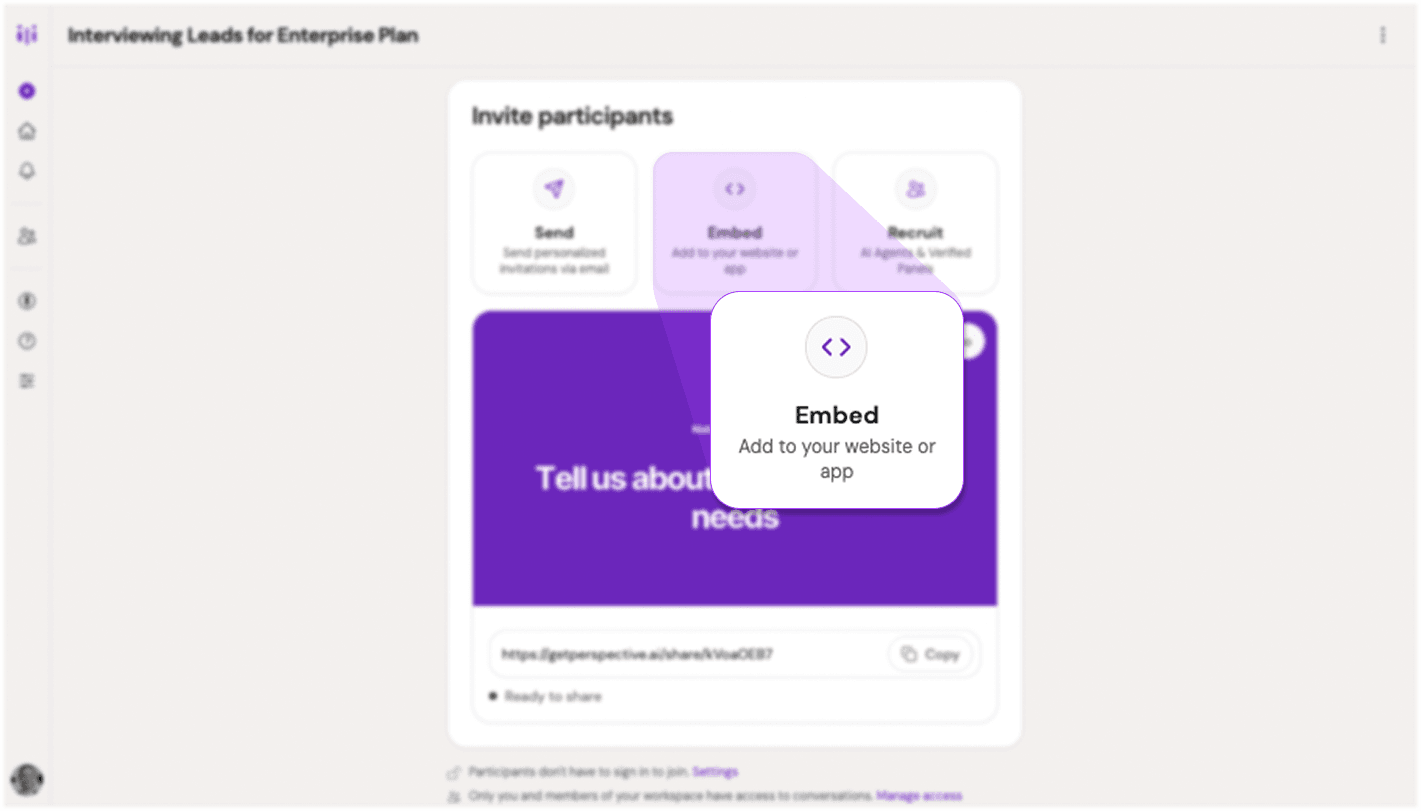
Embed option in the invite participants menu
2. Choose Your Embed Type
Perspective offers four embed types:
Full Page – Displays the interview in a full-height iframe. Best for standalone experiences where the interview is the primary content.
Inline Widget – Drops the interview directly into your page content. Ideal for contextual placement within articles, product pages, or dashboards.
Button – Triggers the interview in one of three styles:
- Popup: Modal overlay centered on screen
- Slider: Side panel that slides in from the edge
- Chat: Chat-style interface anchored to the corner
Choose Button for unobtrusive placement that doesn't interrupt page flow.
Card – Shows a clickable preview card that opens the interview in a new tab. Useful for resource centers or when you want users to opt into a full-screen experience.
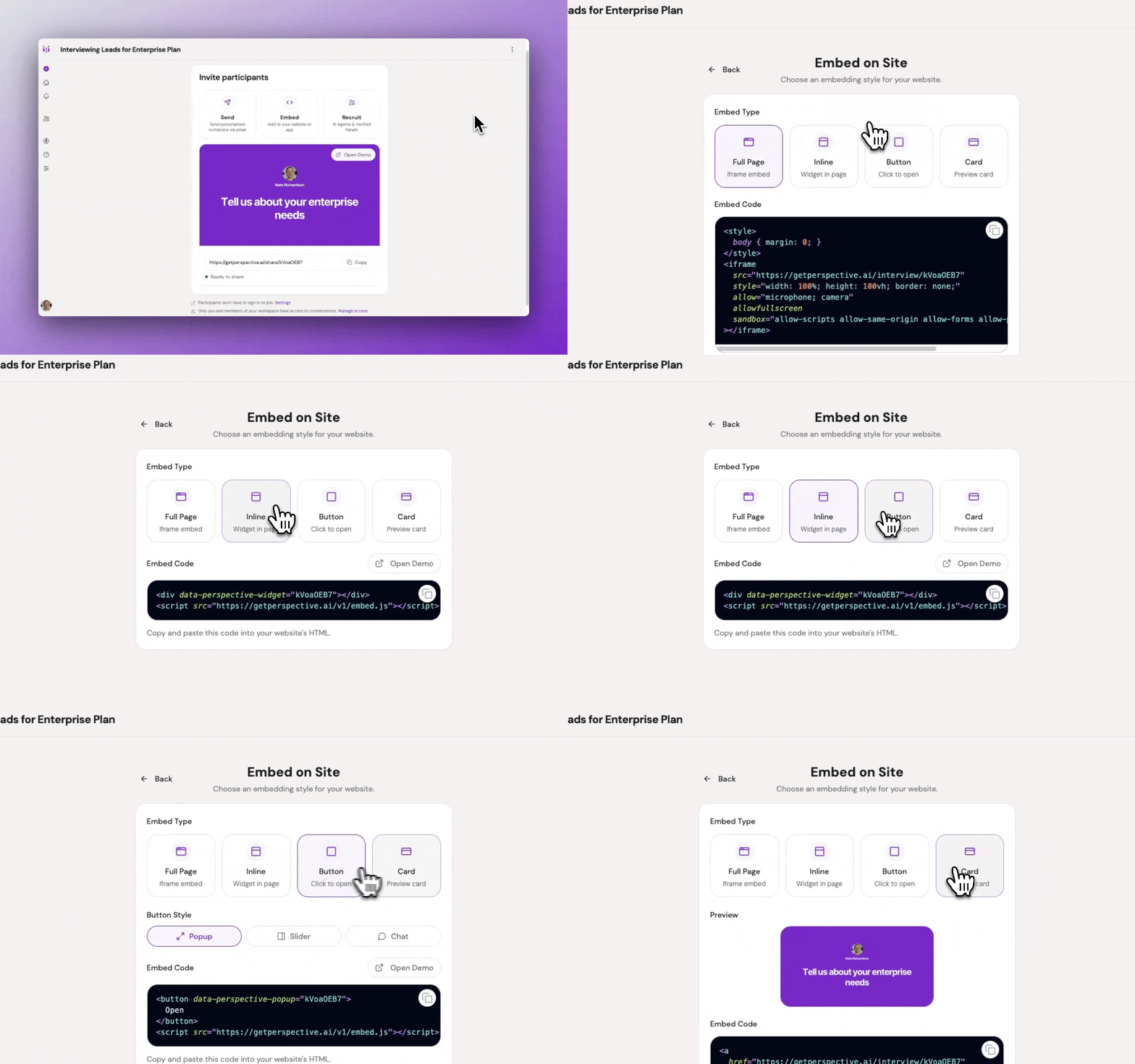
Four embed type options with Full Page selected
3. Copy the Embed Code
Once you select a type, Perspective generates the embed code automatically. Copy the snippet and paste it into your site's HTML, or forward it to your development team.
Preview before deploying: You can test the Inline embed and all three Button styles (Popup, Slider, Chat) directly from the embed panel using the preview option. This lets you verify the experience before adding code to your site.
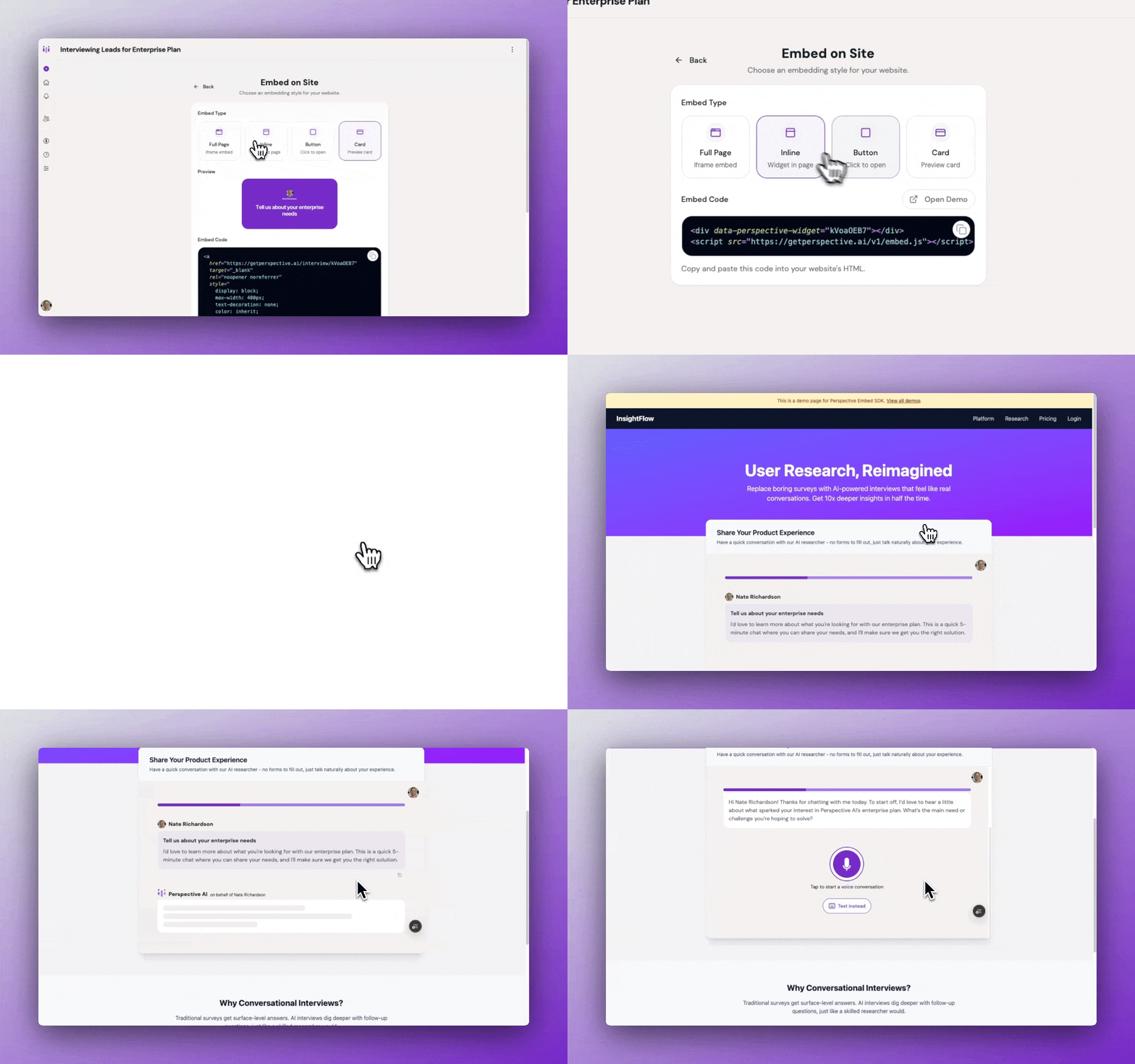
Inline embed preview showing interview in page
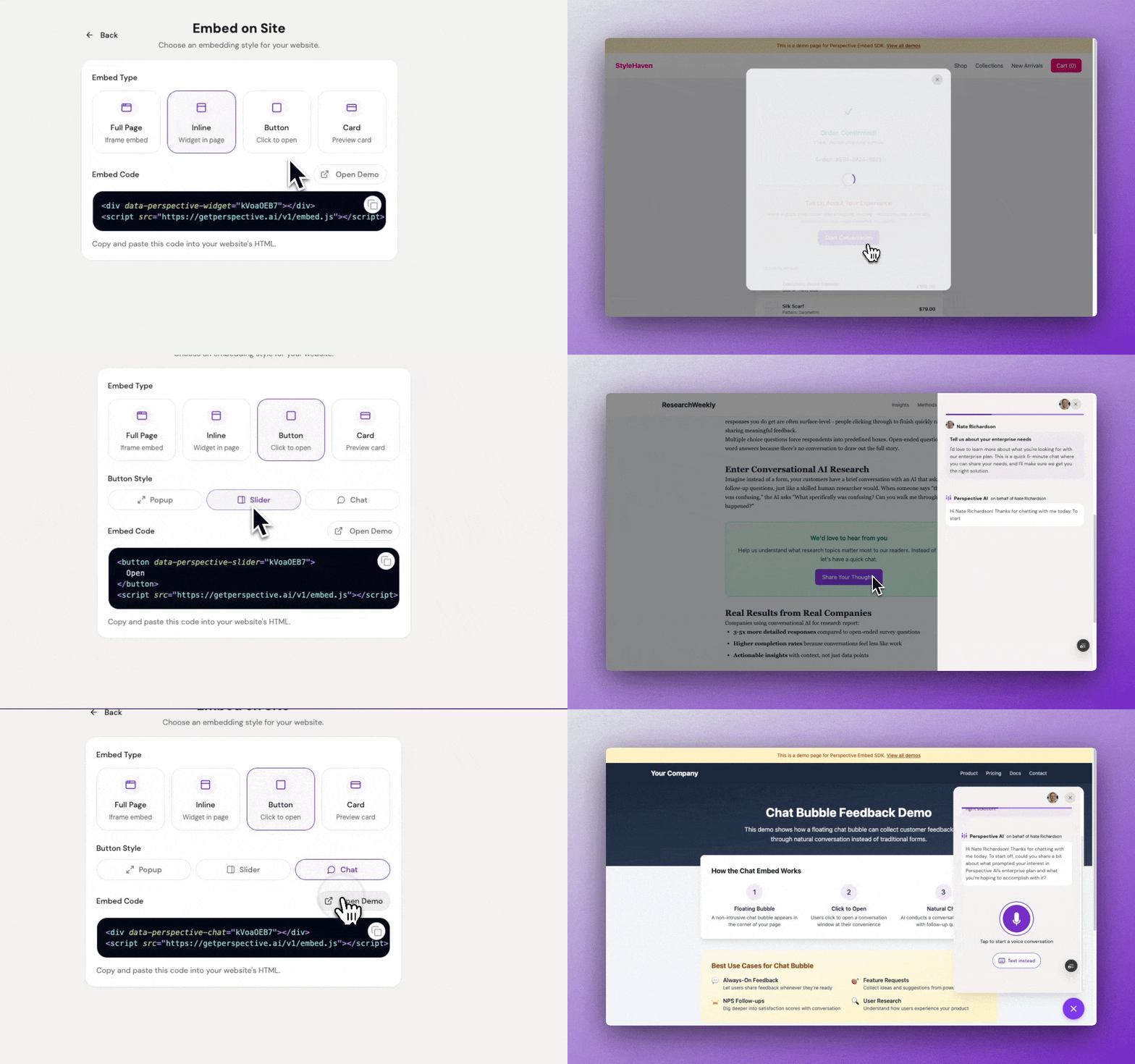
Button embed previews cycling through Popup, Slider, and Chat styles
For technical teams using AI-assisted development tools, you can integrate via the Perspective AI MCP server. This lets you add embed code directly from Cursor, Codeium, Claude Code, or any IDE supporting custom MCPs.
Best Practices
- Match embed type to context: Use Inline when the interview relates to specific page content. Use Button with Chat style for persistent access across multiple pages.
- Test button styles: Try Popup, Slider, and Chat styles to see which fits your site's interaction patterns.
- Preview before deploying: Use the "Open Demo" link to test the embed experience before adding it to your site.
- Track by placement: Use distinct outlines for different embed locations to measure which placements drive the most engagement.
Common Pitfalls & Fixes
Issue: Embed code not rendering on site
Fix: Verify the script tag is placed before the closing
Fix: Verify the script tag is placed before the closing
</body> tag and that no ad blockers are interfering with the Perspective domain.Issue: Button embed doesn't match site styling
Fix: Button embeds inherit basic styling. For custom button appearance, use the generated data attributes and apply your own CSS to the button element.
Fix: Button embeds inherit basic styling. For custom button appearance, use the generated data attributes and apply your own CSS to the button element.
Issue: Card preview appears blank
Fix: Card embeds generate a preview image when you first create the outline. If the preview is missing, re-save the outline to regenerate it.
Fix: Card embeds generate a preview image when you first create the outline. If the preview is missing, re-save the outline to regenerate it.