Creating and Managing Participant Groups
Updated: March 30, 2026
Participant groups let you save participants for future outreach. Instead of entering the same email addresses each time, group people by segment, cohort, program, or any other classification your team uses.
How Participant Lists Work
The participant area has three views:
- All – Everyone known to the workspace through real participant conversations, workspace membership, or interview/group invitations.
- Research – Dynamic participant lists generated from previous conversations. These are useful when you want to re-invite people from a specific study.
- Groups – Custom groups you create and maintain manually.
Preview, deleted, and simulated conversations are excluded from participant lists and research-derived groups. AI-generated conversations are useful for testing, but they do not become real participant records.
When to Use Participant Groups
Participant groups are ideal for:
- Longitudinal research – Track the same participants across multiple studies over time
- Segment-based research – Organize participants by plan type, company size, role, or other attributes
- Panel management – Build a roster of engaged participants willing to provide ongoing feedback
- Follow-up studies – Quickly re-engage participants from previous research for deeper exploration
- Beta programs – Maintain a dedicated group of early adopters for continuous feedback
Creating Your First Participant Group
Step 1: Navigate to Groups
Open Participants from the workspace sidebar, then select the Groups tab.
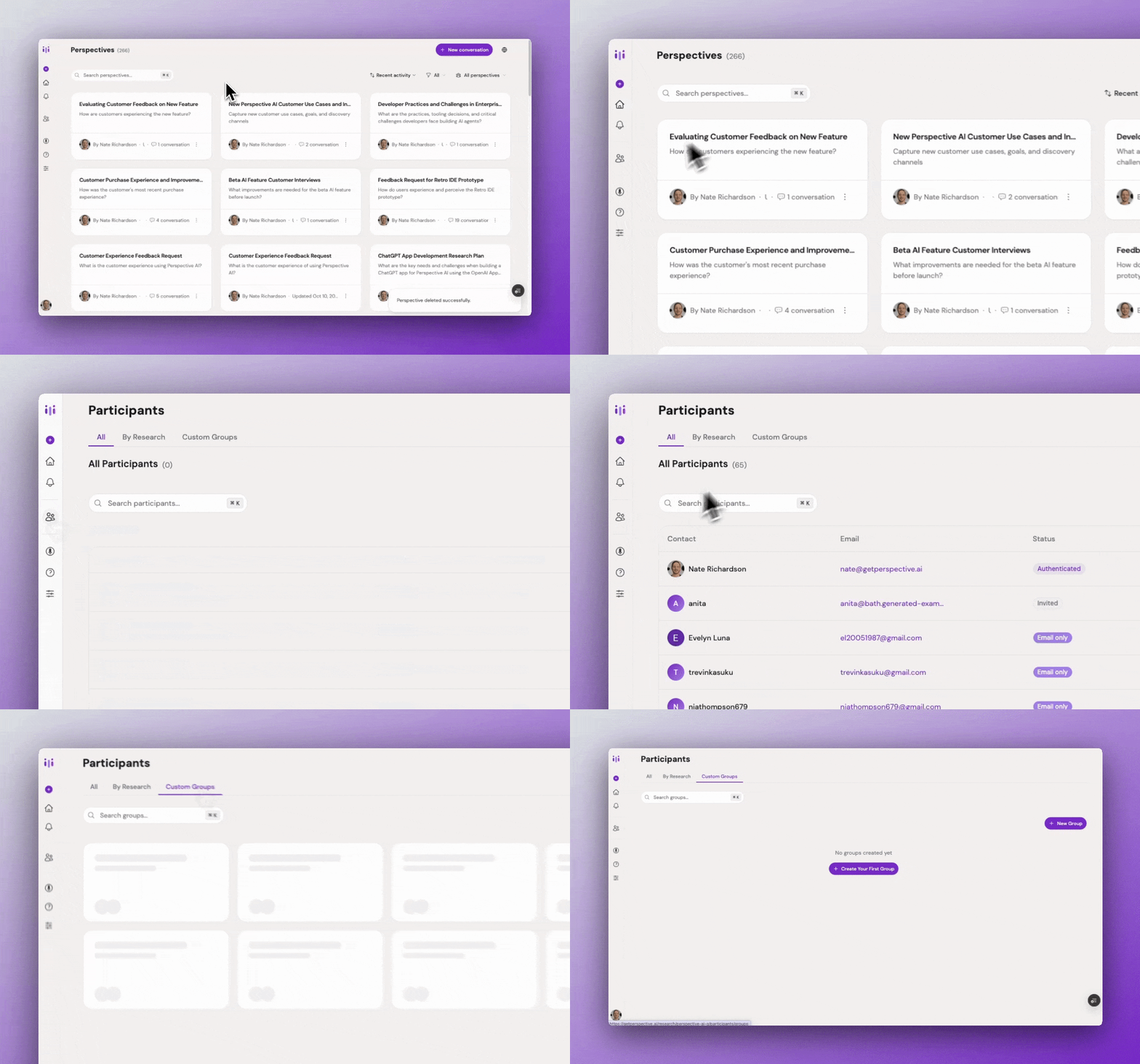
Groups icon in left sidebar
Step 2: Create a new group
- Click New Group
- Enter a descriptive group name (e.g., "Enterprise Beta Testers," "Power Users," "Churned Customers")
- Add an optional description to clarify the group's purpose or criteria
- Click Create Group
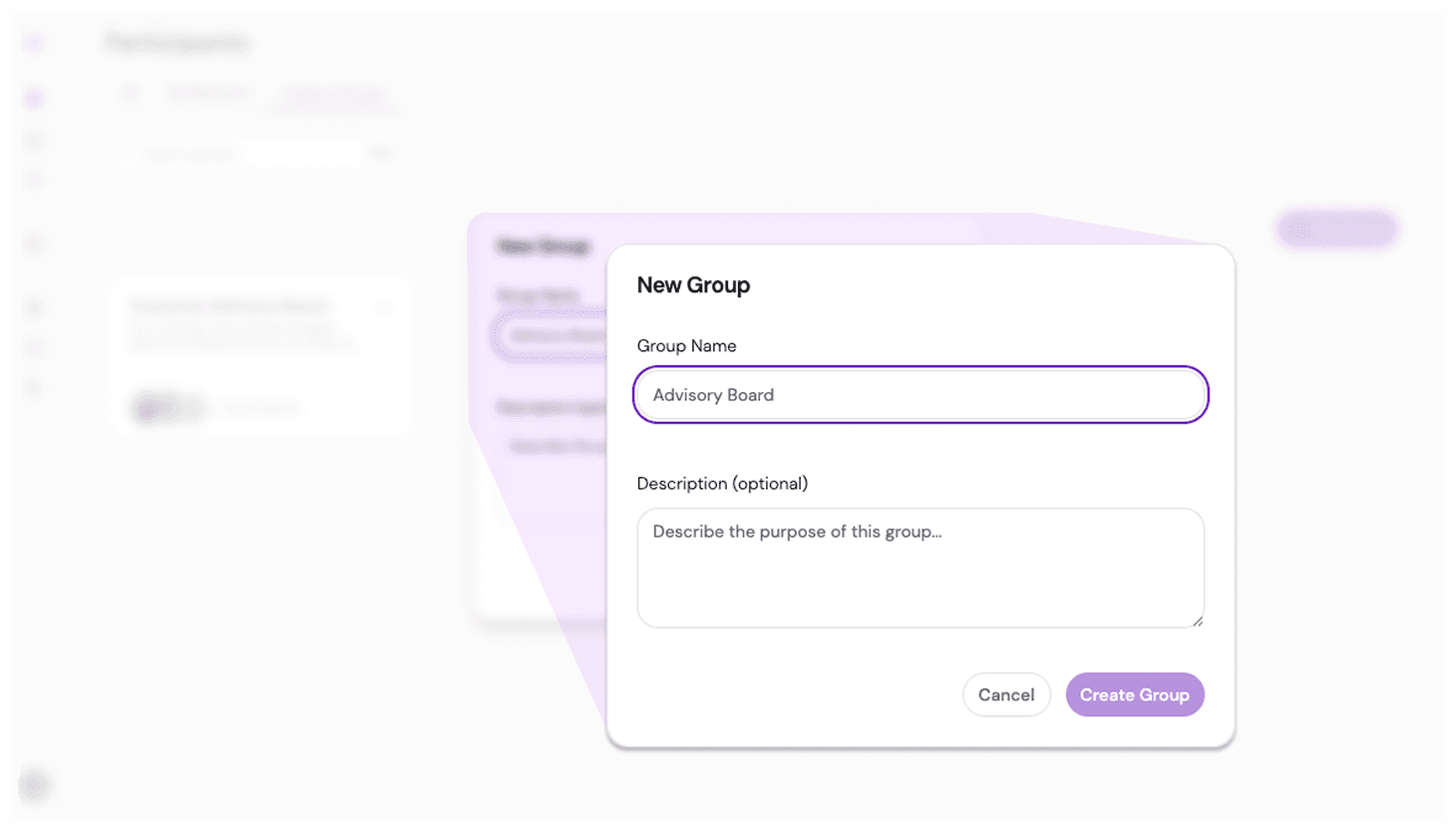
Group creation modal with name and description fields
Step 3: Add participants
Once your group is created, open it and click Add Participants. You can add participants in two ways:
Select existing participants:
- Search people already known to the workspace
- Select the participants you want to add
Add new participants by email:
- Type or paste email addresses into the picker
- Press Enter or comma to add them
- Save the selection
If the email belongs to an existing user, Perspective adds the group to that user's workspace group list. If the email does not belong to a known user, Perspective creates a group-membership invite record so the person can still be represented in the group.
Step 4: Save your changes
Click Add Participants to save the selected people to your group. Duplicate members are skipped and reported as failures so the same person is not added twice to the same group.
Managing Your Participant Groups
List view
The list view for each group displays key information about every participant:
- Name – Display name of the participant
- Email – Contact email address
- Status –
Authenticated,Invited, orEmail only - Conversations – Total number of real conversations with meaningful interaction associated with that participant
- Last Activity – Most recent interaction date
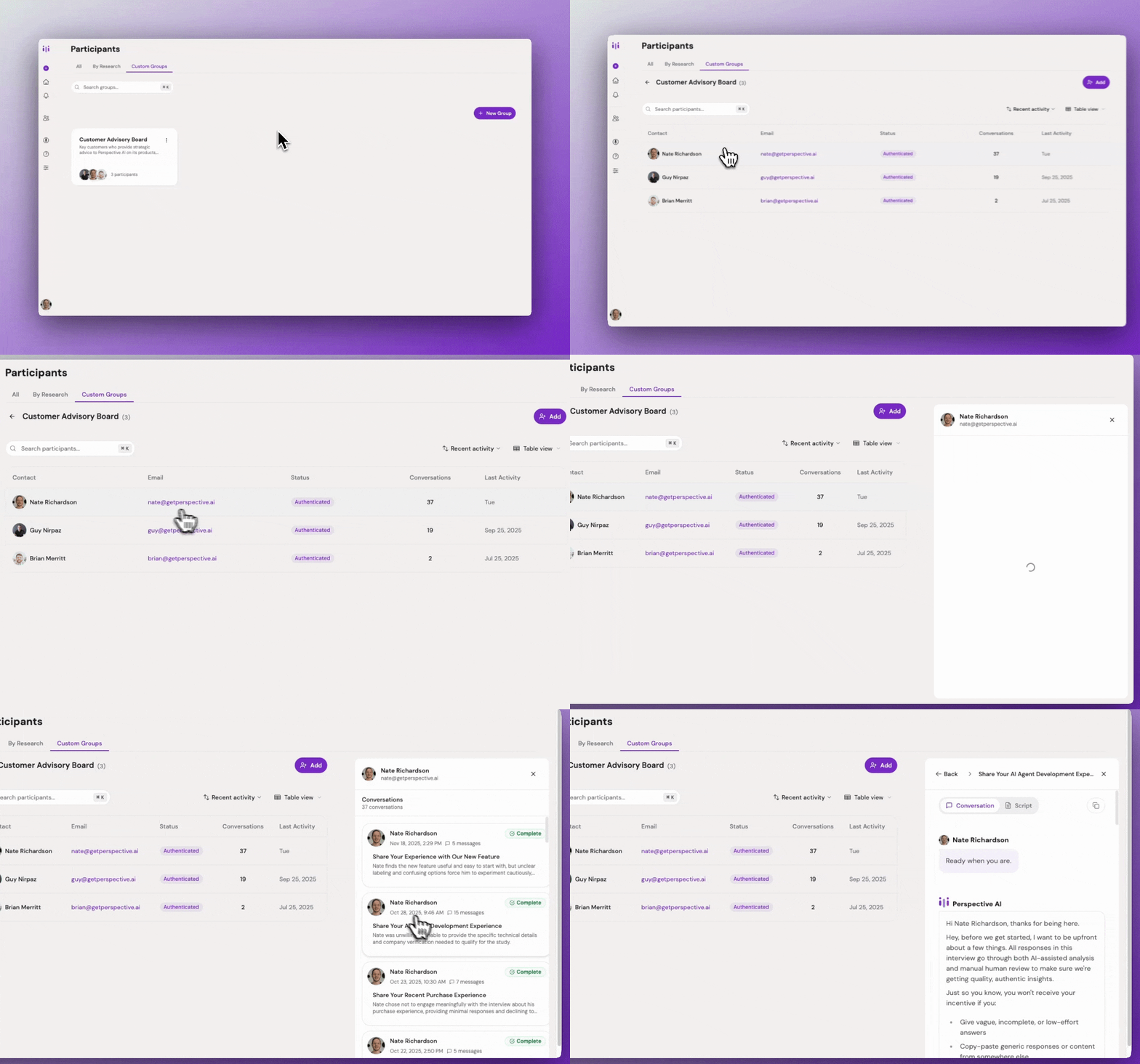
Participant group list view
Research-derived groups
The Research tab shows a dynamic group for each previous conversation with real participants. These are not custom groups you edit directly. Use them when you want to invite everyone who participated in a previous conversation.
When you use a research-derived group in the email invitation flow, Perspective expands it into the unique participant emails from that conversation.
Removing participants
Open a custom group, select one or more participants, and click Remove. Removing someone from a group does not delete their conversation history. It only removes that custom group membership or the related group-membership invite.
Deleting groups
Deleting a custom group removes the group and its memberships from the workspace. Participant records and conversation history remain available in the All and Research views.
Viewing participant history
Click any participant to see their complete conversation history. Use it to:
- Review all previous interviews with that participant
- Understand their journey and evolving feedback over time
- Identify patterns or changes in their responses
- Prepare for follow-up research with relevant context
Using Groups to Invite Participants
Once you've created a group, use it in the invitation flow:
- Create a new research outline or open an existing one
- Select Invite participants
- Select Send
- Choose Email
- Search for your group by name
- Select the group to add all members to your invitation list
- Compose your message
- Click Send
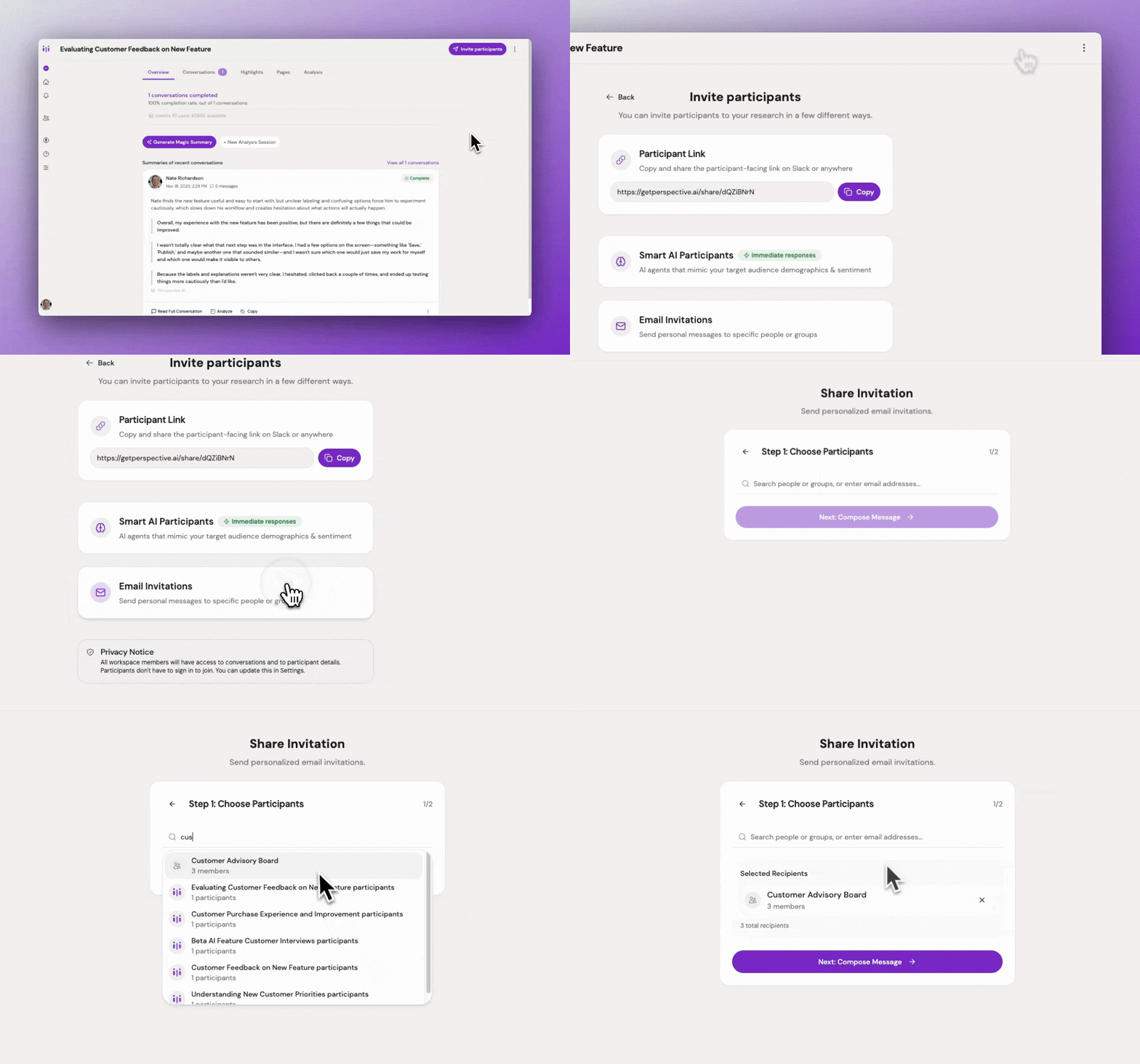
Selecting a participant group when inviting
Perspective sends invitations to each selected group member, so you do not need to enter each email address manually.
Best Practices
Use descriptive group names. Names like "Q4 Enterprise Users" or "Mobile App Beta Cohort" are more helpful than "Group 1" or "Test Users."
Add descriptions for context. Future you (or your teammates) will appreciate notes about who belongs in the group and why.
Update groups regularly. Remove participants who've churned, opted out, or are no longer relevant to keep your groups accurate.
Create segment-specific groups. Organize by meaningful attributes like user role, plan tier, product usage, or research cohort rather than arbitrary divisions.
Track group engagement. Monitor the "Last Activity" column to identify highly engaged participants worth prioritizing for future research.
Build longitudinal panels. Create dedicated groups for participants willing to provide ongoing feedback so follow-up studies start from a known audience.
Document group criteria. Use the description field to note any specific screening criteria or characteristics that define group membership.
Use research-derived groups for one-off re-invites. If you only need to reach everyone from a previous study once, select that study's Research group in the invite picker instead of creating a permanent custom group.
Common Pitfalls & Fixes
Duplicate participants across groups → This is fine and often useful. The same person can belong to multiple groups (e.g., "Power Users" and "Enterprise Customers").
Adding an email-only participant and expecting a full profile immediately → Email-only entries are represented by an invite until the person participates or signs in. Their profile fills in as more information becomes available.
Creating too many narrow groups → Balance specificity with usability. Ten highly specific groups may be harder to manage than five well-organized ones.
Not leveraging past research → Before creating a new group, check the Research tab. You may already have a dynamic list of ideal participants from a previous conversation.
Outdated group membership → Regularly audit groups to remove participants who are no longer relevant or have requested to be removed from research.
Expecting AI participants in groups → Simulated conversations do not appear in participant groups. Use Recruit Participants for AI testing and real invitations for production collection.