Analyzing Links for Conversation Context
Updated: March 30, 2026
Use link analysis when the conversation depends on hosted content: a landing page, help article, signup flow, form, product page, Figma prototype, HubSpot page, Notion doc, or another public resource.
When you provide a URL during design, Perspective can analyze the page, summarize what it finds, and use that context to create a more relevant conversation. For website URLs, the analyzer can also extract business context, page structure, brand assets, colors, logos, and key pages that may help the design agent.
This is design context, not a separate response-sharing feature. The summary helps Perspective design the conversation and populate outline knowledge. If a link should be shown to participants during the conversation, add it as a shared resource. See Knowledge & Resources.
What Perspective Can Use From Links
- Business context – What the company, product, or page is about.
- Value proposition and audience – Who the content is for and what it promises.
- Page structure – Important sections and links that shape the participant's experience.
- Brand details – Name, logo, favicon, and colors when available.
- Form fields – For Concierge conversations, a form URL can be inspected to identify fields and convert the form into a conversational flow.
- Participant-facing resources – Links you explicitly mark as shared can be presented to participants during the interview.
How to Analyze a Link
Ask Perspective to analyze the link before creating or updating the outline.
1. Be clear and direct
Instead of saying:
Say:
In the example below, the instruction tells Perspective what to inspect and what conversation to design:
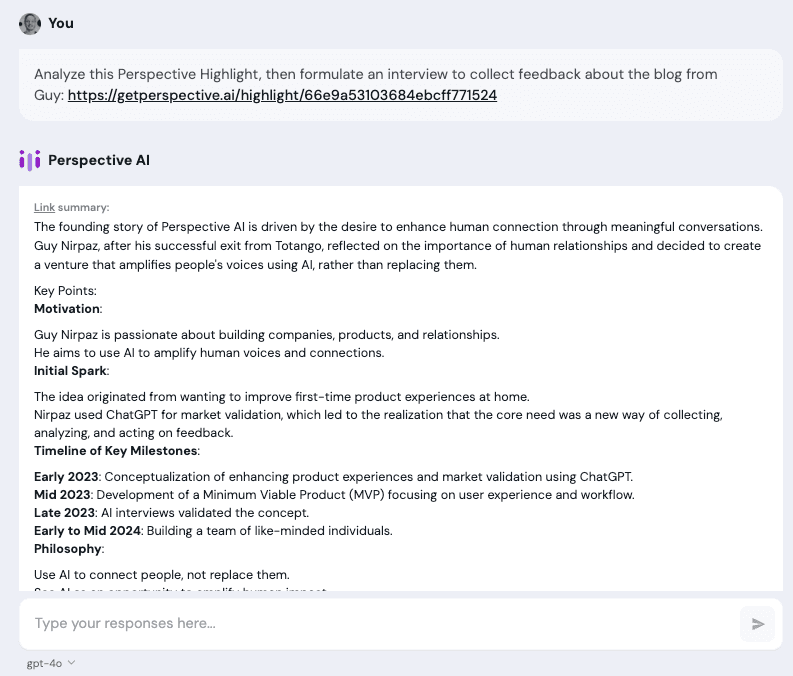
Be Clear And Direct
2. Say what the link is for
Perspective can use the same URL differently depending on your goal. Be explicit:
- "Use this pricing page as private context for the agent."
- "Show this brochure to participants halfway through the interview."
- "Convert this public form into a Concierge conversation."
- "Analyze this product page and ask visitors what is unclear."
3. Follow up if needed
Sometimes Perspective may start designing before summarizing the linked content. If that happens, tell it to pause and analyze the content first:
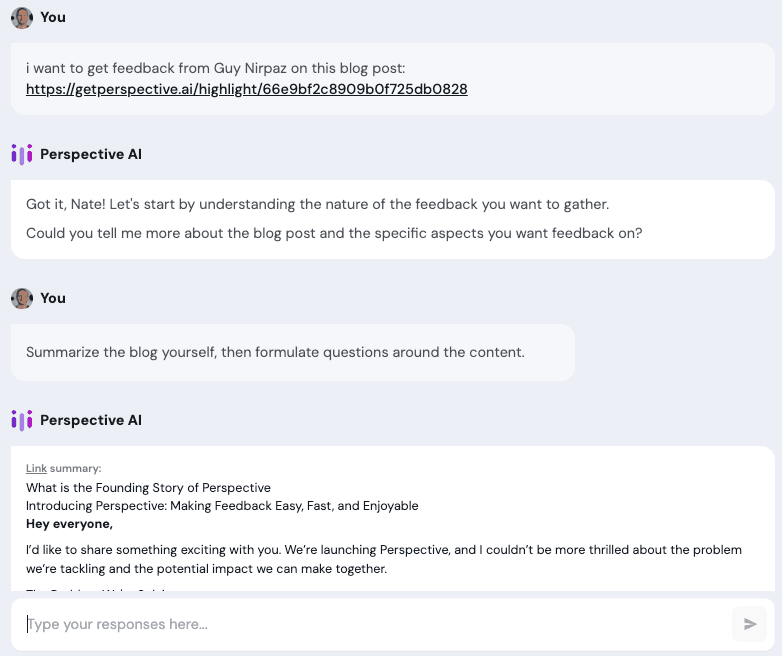
Follow Up When Needed
Shared vs. Private Link Context
Use the right scope for each link:
- Private context helps the agent design and conduct the conversation. Participants do not see the link unless the interview guidelines tell the agent to share it.
- Shared resources are participant-facing. The interview agent can present them as clickable links in the chat when relevant.
For example, a competitor analysis doc is usually private context. A brochure, prototype, pricing page, or policy that participants need to review can be a shared resource.
Best Practices
Share public URLs when possible. Auth-gated links, private dashboards, and pages blocked from automated access may not be readable. If a link is private, upload a document or screenshot instead.
Tell Perspective what to extract. "Analyze the objections this pricing page may raise" is more useful than "look at this page."
Use shared resources intentionally. Only mark links as shared when participants should actually see them during the conversation.
Review the Knowledge section afterward. Website analysis can populate outline knowledge and branding. Confirm that the facts are accurate before launching.
Re-run analysis when content changes. If the landing page, form, or product copy changes, ask Perspective to re-analyze the URL and update the outline.
Common Pitfalls & Fixes
Perspective cannot access the link → The page may require authentication, block automated access, or load important content client-side. Share a public URL, upload a document, or provide screenshots.
The agent asks generic questions → Ask Perspective to summarize the page first, then update the goals, knowledge, and interview guidelines based on the summary.
Participants need to inspect the content but never see it → Add the link as a shared resource and include guidance about when the agent should present it.
Brand details look stale → Re-run website analysis or update brand settings manually.